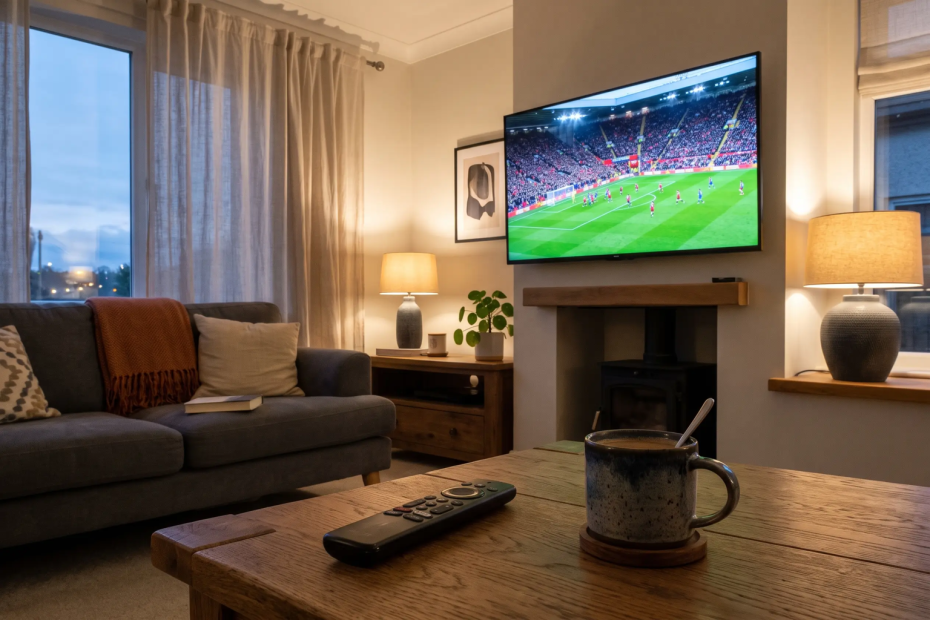
IPTV sends live television, sports, and on-demand films over your home broadband instead of a cable wire or satellite dish. Most Samsung, LG, Sony, TCL, and Hisense televisions built from about 2018 onward run player apps right on the screen with your normal remote. Older sets, along with locked platforms like Roku TV and Vizio SmartCast, cannot run these apps directly and need a cheap HDMI streaming stick plugged into the back. For UK households leaving long cable contracts behind, this turns one screen into a clean, single-remote setup.
How IPTV Works on a Smart TV
What You Need Before You Install
Many first-time users download a free store app only to hit a blank login screen. An IPTV player is an empty shell with no built-in channels inside, unlike free ad-supported streaming apps. Before you install anything, have four things ready: a supported television system or HDMI stick, steady broadband (roughly 25 Mbps for HD and 35 to 50 Mbps for reliable 4K playback), an official store player app, and active login details from a service. Those details arrive as an M3U playlist link or an Xtream Codes login with a server address, username, and password.
Setting Up an IPTV Player on Your Smart TV
Smart TV players decode broadband video streams instead of reading broadcast tuners, as explained in this Internet Protocol television overview. Skip phone-oriented apps when searching your television store because their menus fail on large screens. Match your television system below:
| TV System | App Store | Trusted TV Players | App Cost |
|---|---|---|---|
| Samsung Tizen | Samsung Apps | IBO Player, Smart IPTV, IPTV Smarters | One-time developer fee after 7-day trial |
| LG webOS | LG Content Store | IBO Player, Smart IPTV, Set IPTV | One-time developer fee after trial |
| Google, Android, Fire TV | Play Store, Appstore | TiviMate, IPTV Smarters Pro, IBO Player Pro | Free base tier or pro upgrade |
| Roku TV, Vizio SmartCast | No M3U or Xtream apps | Plug in Firestick or Google TV stick | Streaming stick purchase |
Five Steps to Finish Your Setup
Follow these five steps to finish your setup cleanly:
- Check your television’s operating system in settings (or connect an HDMI stick on Roku or Vizio) and install any waiting updates.
- Download a verified television player from the official store rather than lookalike mobile apps.
- Sign in directly with Xtream Codes on Google or Android TV to sync your guide fast. On Samsung and LG, copy the app’s on-screen MAC address and device key (not your television’s hardware MAC) to upload M3U or Xtream details from a phone browser.
- Restart the player so every channel and the electronic programme guide (EPG) import completely.
- Test several live and on-demand streams with your remote.
Getting Smooth 4K Playback on Your TV
When to Use a Dedicated Streaming Stick
Built-in apps on Samsung, LG, or Google televisions work well when you want simple daily viewing with one remote. Even so, UK households switching from cable contracts to 4K IPTV streaming on Smart TVs and Firestick often attach an external Firestick or Android TV device. Smart televisions ship with limited memory, and both Tizen and webOS block TiviMate as well as on-device VPN apps. A dedicated streaming stick gives you faster channel switching, dependable IPTV Smarters updates, and much smoother 4K decoding.
How to Fix Buffering and ISP Throttling
Strong broadband can still stall during live UK football, PPV boxing nights, and 4K on-demand cinema when your setup hits weak links. Built-in television Wi-Fi chips drop frames, background apps crowd memory (and standby features like LG Quick Start+ stop apps from resetting fully), and UK broadband providers often throttle busy evening broadcasts. Switch to a wired Ethernet cable, clear app cache and restart the television, and use built-in VPN streaming on Firestick, Android TV, and IPTV Smarters to prevent UK broadband ISP throttling. When comparing IPTV UK options, pairing clean hardware with a steady UK IPTV subscription on strong servers delivers reliable 4K IPTV streaming for UK homes without constant buffering.
Staying Safe and Legal With IPTV
Follow four plain safety steps before paying an app fee or choosing a service. Download players strictly from your television’s official store to steer clear of ad-heavy clones, and type activation web addresses manually rather than clicking search ads that mimic MAC payment portals. Guard M3U and Xtream credentials like passwords. IPTV technology itself is legal, while streams without broadcast rights are not, so always test stream and EPG stability on a short trial before paying. Honest billing and clear terms aligned with Federal Trade Commission business guidance separate trustworthy providers from fly-by-night operators.